Memory: variables
Showing values in the text
Print a value, or show a paragraph only sometimes.
On this page
Remembered values are most useful when the reader can feel them. This page covers the two ways to bring a value into the text itself: printing it, and showing a paragraph only when something is true.

Print a value#
Above a scene's text, the Insert a value… menu lists your remembered values. Pick one and it drops into the text at the cursor as a small pill showing the value's name. When a reader gets there, the pill is replaced by whatever the value holds at that moment.
The stall
- coins5
The menu offers numbers, text and lists. It leaves out yes/no values, because there is no natural way to drop a bare "yes" into a sentence. To react to a yes/no value, show a paragraph only sometimes, as below.
How each kind prints#
- A number prints as a number. Whole numbers appear as they are. Anything with a fraction is rounded to two decimal places with the trailing zeros dropped, so 3.5 stays 3.5 and 3.333 becomes 3.33.
- Text prints exactly as the reader typed it.
- A list prints its items joined with commas and an "and" before the last one, such as "a sword, a shield, and a torch". An empty list prints nothing, so guard the sentence with a show-only-if paragraph or give the list a starting item. See Lists and inventory.
To remove a pill, put the cursor after it and press Backspace once. The whole token goes in one keystroke.
The value is frozen when the reader arrives#
A scene prints the value as it was the moment the reader reached it. If a later scene changes the value, the earlier scene the reader has already read does not change. Nothing on the page updates live. This is what you want, because it keeps the text the reader saw consistent with what they read.
Show a paragraph only sometimes#
The Shown-only-if paragraph button in the toolbar adds a block to the text, headed Shown to readers only if. Choose the checks just as you would on a choice, then write the paragraph inside. Readers see the paragraph only when every check holds.
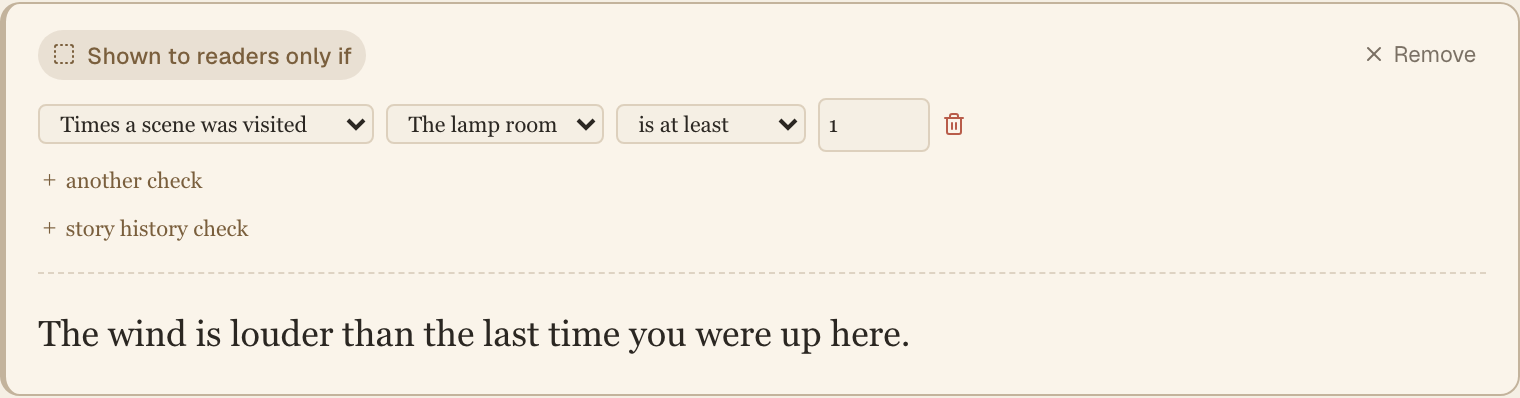
The button is always there. The checks work like the ones on choices, and because a paragraph block can also check story history, you can use one even before your story remembers anything. See Story history.
To turn a block back into an ordinary paragraph, choose Remove in its header. The text stays.
Rules#
- It works on whole paragraphs. To make one sentence conditional, put it in a paragraph of its own.
- A block cannot contain another block.
- Like a printed value, the check is made when the reader arrives.
- Blocks cut down the number of scenes you need. Instead of writing two versions of a scene, write one and give it a paragraph that changes.
Common mistakes#
- The value is not in the menu. Yes/no values are left out on purpose. Check the value's type.
- Nothing prints where you expected a list. An empty list prints as nothing.
- The paragraph never appears. Check that something actually changes the value before the reader reaches this scene, and remember that a preview started from a scene begins with every value at its starting value.
Next#
You can print what the story remembers. Next, let the reader tell the story something. Read Asking the reader for text.