Memory: variables
Asking the reader for text
Let the reader type a name and use it later.
Most of the time the reader only clicks. You can also let them type. The classic use is a name that the story then uses again and again, which is a quick way to make a story feel written for one person.
How it works#
A text field is a box inside a scene. The reader types an answer, then picks any of the scene's choices. When they do, what they typed is stored in a remembered value of the type text. Any later scene can print it, and any choice or fork can check it.
The scene keeps its choices. The field does not replace them, and the reader still decides how to continue.
The front desk
Fill in the answer above to continue.
- name
Add a text field#
Put the cursor in the text where the box should appear. In the toolbar, open Ask for text…. It lists your existing text values, and the last option is + Add a new text field…. Choosing that:
- Adds a dashed pill in the text, marking where the box will be.
- Creates a text value for the answer.
- Opens a small settings box on the pill straight away.
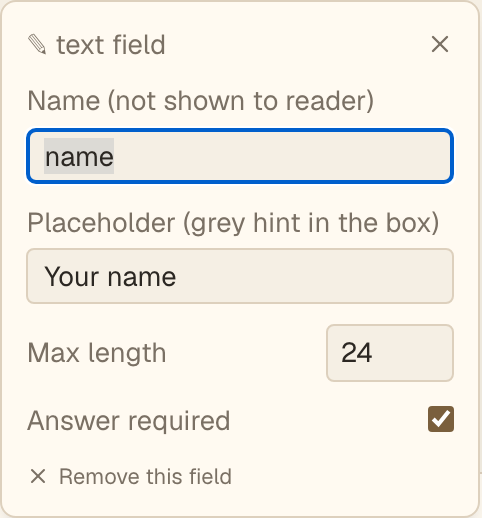
The settings#
- Name (not shown to reader). What this answer is called in your notes and menus, such as "name" or "nickname". Readers never see it.
- Placeholder (grey hint in the box). Grey text shown before they type, such as "Type your name".
- Max length. How many characters they can type. The default is 80, and no field can go above 500.
- Answer required. When it is on, every choice stays disabled until the box has an answer. Use it when the story cannot continue without one.
- Remove this field. Takes the box out of the scene.
Click a pill at any time to reopen its settings.
Use the answer#
Print it with the Insert a value… menu, exactly like a number. You can print it as many times as you like, in later scenes and in endings. See Showing values in the text.
You can also check it. In a condition on a text value, the comparisons are is, is not, is empty and is not empty. That lets you hide a choice until the reader has typed something, or send a reader down a different path for a particular answer.
Things to keep in mind#
- Ask for a name or a nickname, and nothing sensitive. Readers should never feel they are filling in a form about themselves.
- People type unexpected things. Do not build logic that depends on an exact spelling. "Is empty" and "is not empty" are safe. Matching one particular name is fragile.
- A text check cannot compare against text that contains a double quote or an ampersand. The editor flags it if you try.
- If the box is not required and the reader leaves it empty, the value stays empty. Write the text so it still reads properly, or use a show-only-if paragraph.
- The answer is saved with the reader's progress, so it comes back when they resume.
Next#
You can now collect and use a single value. For a growing collection, read Lists and inventory.