Branching basics
Story details and cover
Title, genre, moods, description and the cover.
On this page
Everything readers see about your story before they start reading comes from a handful of fields in the Story card, in the right panel. This page covers each one.
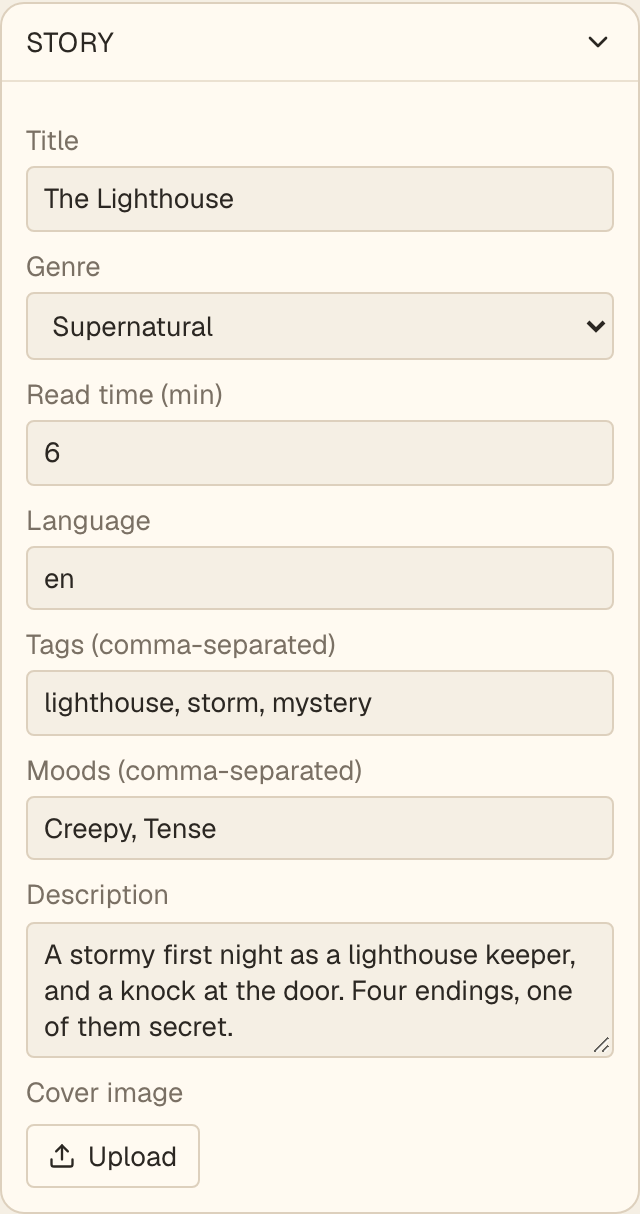
The card opens by itself while your description is empty, as a nudge, and stays collapsed once you have written one. The Panel button in the top bar (it reads Hide Panel while the panel is open) hides or shows the whole right column.
The fields#
Title#
The name of the story. Keep it short enough to read at a glance. Readers see it on the story page and, if there is no cover, on the shelf.
Genre#
Pick one from the list: comedy, crime, drama, fantasy, horror, sci-fi, supernatural or true events. If none fits, choose Other… and type your own. Genre is what readers use to browse, so choose the one a reader would expect.
Read time#
Read time (min) is your honest estimate for a single playthrough, in minutes. The editor suggests a number between 5 and 15 and flags anything outside it as advice, not an error. Read the story through once at a normal pace and use that.
Language#
Stories are English for now, so leave this as it is.
Tags and moods#
Tags (comma-separated) are short keywords about the subject, such as library, memory or isolation. Moods (comma-separated) describe how the story feels, such as Creepy, Hopeful or Mind-bending. Both help people find your story. Use a few of each, and only the ones that are true.
Description#
One to three sentences that set the tone. Describe the story the way a back cover would, without advertising it. Readers see this on the story page.
The cover#
The cover is what a reader sees on the shelf. Nothing else about the story appears there, so most covers carry the title as part of the art.
Choose Upload under Cover image and pick a JPEG, PNG or WebP file. Before it uploads, a cropping window opens.
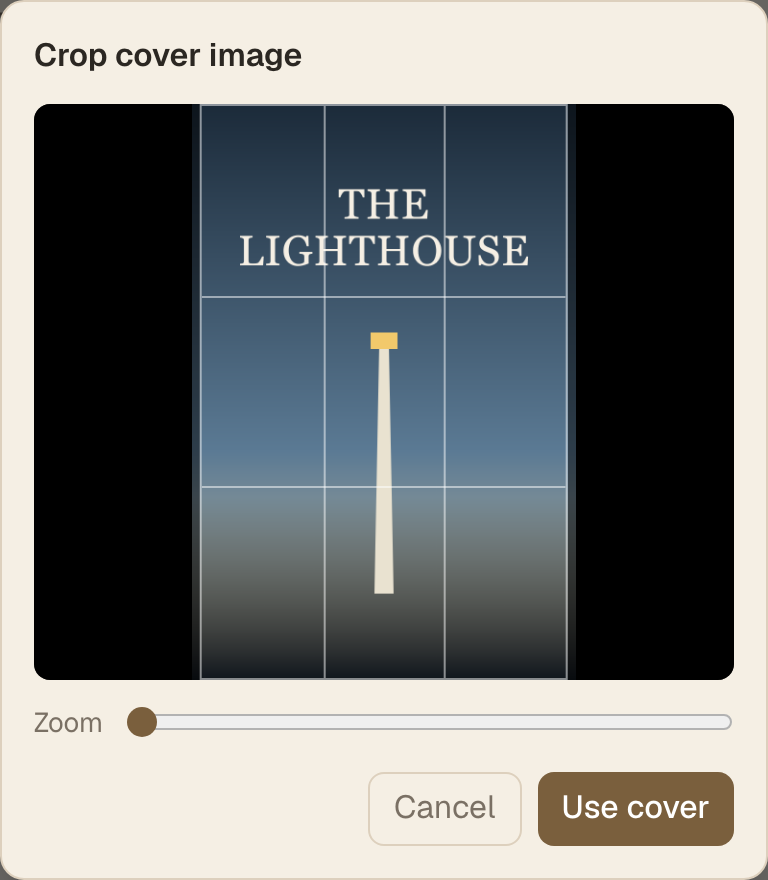
- The guide is fixed to a tall portrait shape, 512 by 800 pixels, a common book-cover size. That is the exact shape covers have on the shelf, so what you crop is what readers see, and a cover made from a standard 512 by 800 template fits as is. Drag the picture to position it, and use the Zoom slider.
- Choose Use cover when it looks right. Your browser resizes the image to 512 by 800 pixels and compresses it before uploading, so uploads are small and pages load fast.
- To replace a cover, upload another one. Remove clears it.
Design the artwork as a portrait from the start. A landscape image can only be used by cropping most of it away.
Without a cover, the shelf shows a plain tile with your title on it. That works, but a cover makes a big difference to whether someone opens the story.
Cover rules#
- You need the rights to every image you upload. The submit form asks you to confirm this. See Preview, share and submit.
- Uploads are checked. If the file carries markers that show it was made by an AI image generator, or carries usage restrictions, the upload is refused with the message "This image looks like it may be AI-generated or carry usage restrictions, so we can't use it." Choose a different image, one you made or have permission to use.
- You can start up to 20 uploads an hour.
The web address#
You do not set your story's address here. When you submit for the first time, you can suggest one, and the editor who publishes the story decides the final address. See Preview, share and submit.
Next#
The last part of the basics is testing what you have made. Read Preview, share and submit if you have not yet, or move on to Writing for Wyoot.