Branching basics
Preview, share and submit
Test your story, send a draft to a friend, and send it for review.
On this page
You have three ways to get eyes on a story before it goes live: read it yourself, send a draft to someone, or submit it to an editor. This page covers all three.
Preview#
The Preview button in the top bar opens your story in a new tab and plays it the way a reader would. Choices are lettered, and endings work like real endings. Nothing you do there is saved.
- Preview here, on any scene, starts from that scene instead of the beginning. Use it to test one part without replaying everything before it.
- If your story remembers things, the preview shows a panel called What the story remembers right now so you can see the values change as you read. See Memory: variables.
- If your story uses randomness, a Reroll button starts over with different random results.
Preview often. Play every path at least once before you submit, including the ones you expect nobody to take.
Autosave and undo#
You never need to save. The editor saves a moment after you stop typing, and the indicator in the top bar shows Saving and then Saved.
Undo in the top bar steps back through your recent changes, and so does Cmd+Z (Ctrl+Z on Windows) outside the text box. Inside the text box, Cmd+Z undoes typing as you would expect.
Share a draft#
To get feedback from a friend before you submit, use Share this draft. Open the menu with the three dots next to Submit and choose it. A box titled Share for review opens.
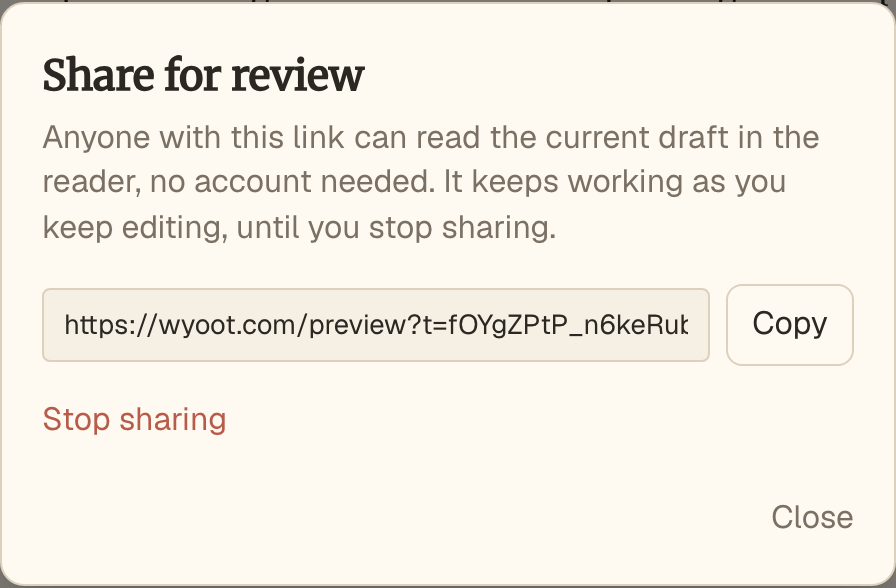
- Choose Create share link. The link appears, and Copy puts it on your clipboard.
- Send it to anyone. They do not need an account. They read the current draft in the same reader you see in Preview.
- Keep editing. The link always shows your latest draft, so they can come back and see changes.
- Choose Stop sharing whenever you want. The link stops working immediately for everyone who has it.
If you stop sharing and later share again, you get a new link. The old one stays dead.
Before you submit#
Two things must be true before Submit for review works.
- Your author profile is complete. That means a display name, a handle, a short bio and a profile picture. You set these up on your account page. If anything is missing, Submit tells you to complete your profile first. Readers see this profile as the byline on your story.
- The Validation card shows no errors. Errors keep Submit disabled, and hovering over it says "Fix validation errors first". Warnings and advice do not block it. See Debugging your logic.
Submit for review#
When you are happy with the story, choose Submit for review. Once a story is live, the same button reads Submit revision. A short form opens.
- Suggested slug. This is the address the story will have, such as
the-last-train. It is only a suggestion, and the editor decides the final one when they publish. - A note for the editor. Optional. Use it to point out anything you want them to look at.
- Two boxes you must tick: you have the rights to everything you uploaded, and the writing is your own original work and not AI-generated.
Both boxes are required, and Submit stays disabled until you have ticked them.
What happens next#
An editor reads the story and either publishes it or sends it back with notes. Their notes appear at the top of the editor, so you can fix things and submit again.
While a story is waiting for review it is locked, so you cannot edit it. If you want to change something, open the three-dot menu and choose Cancel submission. The story returns to draft.
Changing a published story#
Once a story is live, you can keep editing it. Your changes do not show to readers until you submit them as a revision and an editor approves it. If you change your mind, Discard draft in the same menu puts the story back to the version that is live.
Be careful about removing things a live story already has. Readers' progress and found endings are recorded against your endings, so deleting or renaming an ending in a revision can take credit away from people who earned it. The editor warns you when a revision drops something the live version had.
What an editor looks for#
- Writing that is your own, and permission to use any picture you uploaded.
- Every path finding its way to an ending.
- Enough real branching that a second read feels different from the first, and not just reworded.
Next#
You now know the whole basic loop. The next section adds memory, which is what lets a story react to what a reader did earlier. Start with A notebook the story keeps.