Start here
Your first story in 10 minutes
A guided tour of the editor: write two scenes, add an ending, read it back.
On this page
By the end of this page you will have a small working story with two scenes and two endings, and you will have read it the way a reader would. It takes about ten minutes.
The premise below is only there so you are not staring at a blank page. Use your own whenever you like.
You have just missed the last train of the night.
1. Open the editor#
Sign in, open the editor, and start a new story. It opens with a starter story already in it: an opening scene, two choices, and two endings. The placeholder text in each one explains what that part is for, so you can learn the shape by editing it.
The first time you open a story, a short welcome box appears. Read it and choose Start writing.
2. Find your way around#
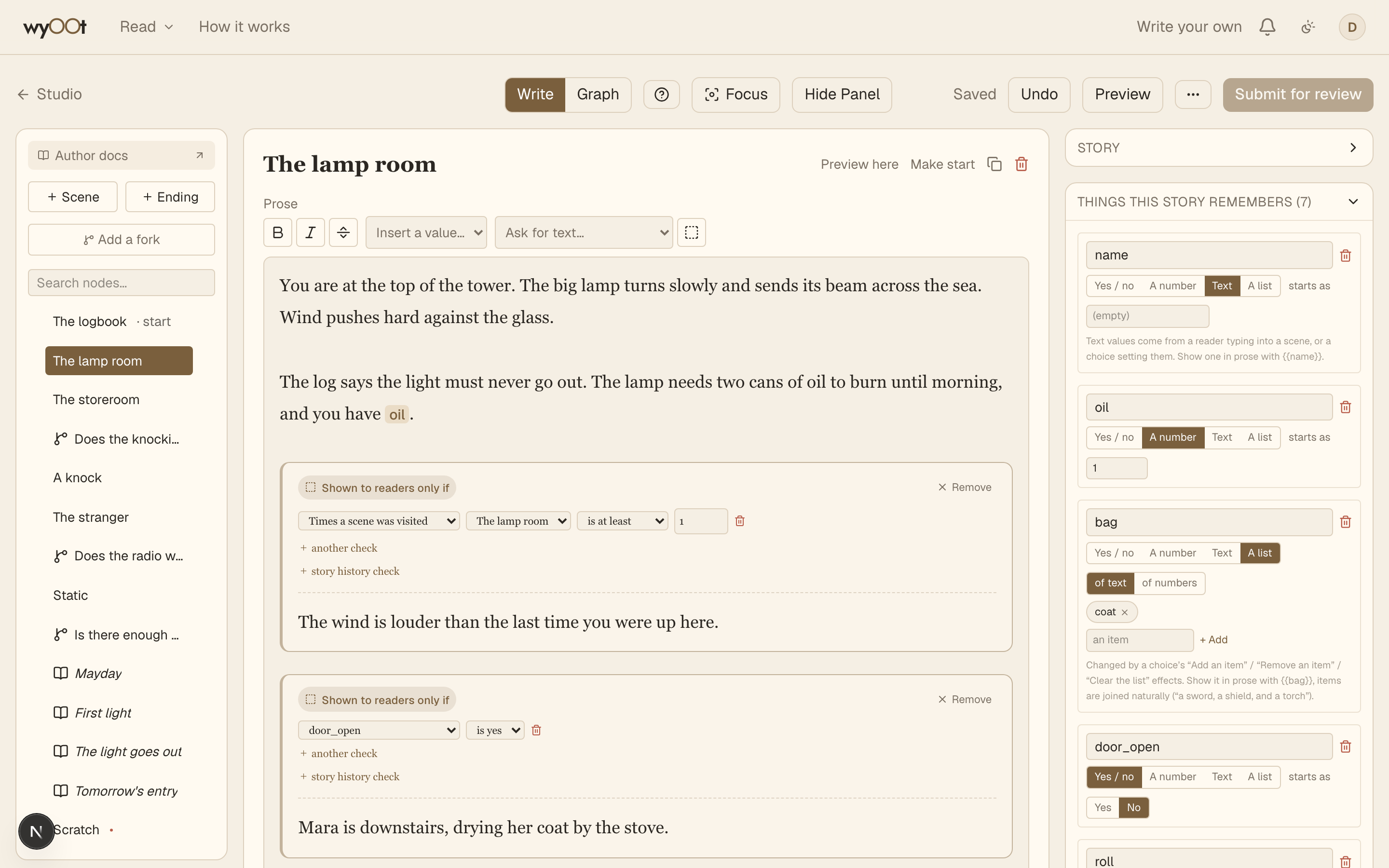
The screen has three areas.
- On the left is the list of everything in your story. The buttons at the top add a scene, an ending or a fork. The scene readers begin with is marked "start".
- The middle is where you write the node you have selected: its title, its text and its choices.
- The right panel holds the story's settings, plus two optional cards, Things this story remembers and "Achievements". Ignore those for now. The Panel button in the top bar hides the whole column.
The bar along the top has a Write and Graph switch, a Preview button, a save indicator, an Undo button, a menu with less common actions, and Submit.
3. Write the opening scene#
Click the scene marked "start". Give it a short title, such as "The empty platform". Then write a few short paragraphs in the text box. A blank line starts a new paragraph.
Wyoot stories are written in second person, so the reader is "you". Here is a starting point:
The board flickers and goes dark. Somewhere behind you a shutter rattles down.
You check your phone. Eleven forty. The last train left two minutes ago, and it is starting to rain.
Keep it short. You can always add more later.
4. Write two choices#
Below the text you will see the scene's choices. Each has two parts: what the reader clicks, and the scene it leads to. Change the wording of the two choices to something the character might do:
- Walk home in the rain
- Wait for the night bus
Write choices as actions, not labels. "Wait for the night bus" is a decision. "Option B" is not.
5. Make a new scene from a choice#
Open the dropdown next to "Walk home in the rain" and pick + New scene…. The editor creates a blank scene, points the choice at it, and takes you there. It appears in the list right under the scene you came from.
Give it a title such as "The long walk" and write a paragraph or two. Then look at its choices. A scene needs at least one, so point one at an existing ending. Call the choice "Keep going".
6. Finish the endings#
Click an ending in the list. Pick its Ending type: good, bad, neutral or secret. Write a title and the closing text.
Ending text is the last thing a reader sees, so it is worth more of your effort than any single scene. Leave the ending key alone. The editor fills it in, and it becomes permanent once the story is published.
7. Read it back#
Click Preview in the top bar. A new tab opens and you play the story like a reader would. Choices are lettered A and B. Nothing you do there is saved, so try every path.
To test one scene without replaying everything before it, use Preview here on that scene.
8. Check the map#
Switch from Write to Graph. You will see every scene and ending with arrows for the choices. Each scene should have arrows leaving it, and every path should end at an ending.
Where next#
The editor saves as you type, so there is nothing to finish or export. Read Scenes to write better ones, or jump to A notebook the story keeps if you want your story to remember what the reader did.